🚨 Free product included with qualifying orders πŸš¨β˜…πŸš¨ Free product included with qualifying orders πŸš¨β˜…πŸš¨ Free product included with qualifying orders πŸš¨β˜…πŸš¨ Free product included with qualifying orders πŸš¨β˜…πŸš¨ Free product included with qualifying orders πŸš¨β˜…πŸš¨ Free product included with qualifying orders πŸš¨β˜…πŸš¨ Free product included with qualifying orders πŸš¨β˜…πŸš¨ Free product included with qualifying orders πŸš¨β˜…πŸš¨ Free product included with qualifying orders πŸš¨β˜…πŸš¨ Free product included with qualifying orders πŸš¨β˜…
Theme

Forthcoming Events

No forthcoming events scheduled.


Expired Events

Summer Sale Ended: 14 Jul 2026
May 2026 Deals Ended: 31 May 2026

Live Event

Active

Heatwave Sale 2026

Feel The Heat! From industry-leading plugins and Kontakt instruments to essential sample packs and cinematic sound design libraries.

Ends In
17d 17h 09m 58s
VIEW ALL DEALS

0

0

Change country:

We use cookies

We and selected 3rd parties use cookies or similar technologies as specified in our Cookie Policy

You can consent to the use of such technologies by using the "Accept" button

Manage cookies

Essential
Essential cookies required for business process and to make the website usable by enabling basic functions. (always active)
Marketing
Marketing cookies are used to serve personalised ads and analyse performance.

Plugin

Plugin Effects

Stagecraft Software

Scratch Track

The easiest way to add scratches to your recording projects.
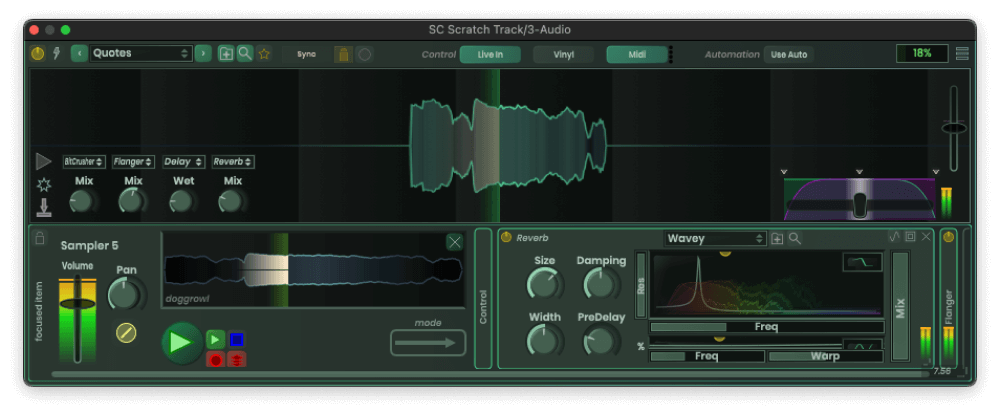
Stagecraft Software - Scratch Track Plugins & FX Software GUI Artwork
Stagecraft Software - Scratch Track Screenshot 2
Stagecraft Software - Scratch Track Screenshot 3
Stagecraft Software - Scratch Track Screenshot 4
Stagecraft Software - Scratch Track Screenshot 5
Stagecraft Software - Scratch Track Screenshot 6
Stagecraft Software - Scratch Track Screenshot 7

$100.00

Earn 270

Digital Download

0

Instant Access Direct download
100% Genuine Official license
Flexible Payments PayPal, Card or Wallet
Support Here to help
Guaranteed Safe & Secure Checkout
Visa Mastercard American Express Apple Pay Google Pay Klarna

Product Overview

Scratch track is designed to give you a way to add scratches to your recording projects. You can use this plugin to scratch samples, loops, tracks or live input. This is the only software to offer live input scratching, and to support all types of timecoded vinyl, midi learn for controls, automation, and programmable crossfade.
Use your timecoded vinyl in any DAW

Scratch Track’s primary function is to allow you to use timecoded vinyl inside your recording software. This means you can scratch audio samples with timecoded vinyl from inside Ableton, Cubase, Reaper, or any other DAW.

To use vinyl, simply follow the steps below:

  • open the plugin UI and enable vinyl inputs (by clicking on “vinyl in”)
  • select the type of vinyl you wish to use (in the vinyl control panel, in the plugin).
  • Make sure your audio is actually being routed to the plugin (specifically, to the first two inputs). In most DAWs, the vinyl input will be the primary input shown on the plugin’s track.
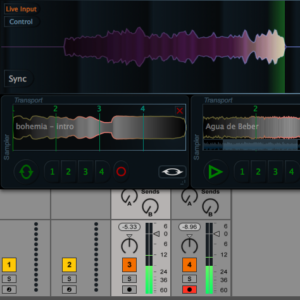
  • In Ableton, for instance, you simply need to select the incoming vinyl signal from the audio input dropdown, as shown below.

Map incoming MIDI messages to any control

Like with all Stagecraft’s plugins, you can map incoming MIDI messages to any of the sliders or buttons. To do this, simply right-click the button or slider and activate the MIDI learn. Once activated, the object will learn the next MIDI message it receives and use it in the future to trigger/move.

How to scratch live incoming audio with Scratch Track

One of the most exciting features of Scratch Track is that it gives you the ability to scratch live incoming audio. For instance, you could sing a few lines of a song, and then grab the turntable and scratch the audio immediately after creating it.

To do this, first enable live streaming by clicking on the “live input” button on the plugin’s UI.

Once enabled, the plugin will add the incoming audio from inputs 3 & 4 to the plugin’s scratch buffer. The incoming audio will also be immediately displayed in the waveform UI.

Notice that once you scratch the stream, it will no longer be in sync with the live throughout. To bring it back up to the current playtime, simply click the “sync” button.

Record automation data from your scratches

One of the most powerful and unique features of Scratch Track is that it can be used to record turntable scratching to automation data. So in addition to recording the audio output (what the scratch sounds like), you can also record how the timecoded vinyl was moved to obtain a certain scratch. Then, tweak the scratch after it’s been created to invent new scratches.

To record automation, simply select the automation “out” on the plugin. This will tell the plugin to send tracking data for all parameters to the host, including the scratches it’s producing based on the timecoded vinyl input. Then, in your host, you can then record this data.

How to do this will vary depending on your software. In Ableton, simply hitting the record button will record all automation.

To hear the automation, select the automation “In” button in the Scratch Track plugin (to let the plugin know it should use incoming automation data and not the incoming timecoded vinyl signal, or other MIDI inputs). You might also need to record automation for one of the “play” parameters in order to trigger the sample.

You should now see the turntable scratch when you hit play on the DAW, regardless of the timecoded vinyl input.

Finally, to take this to the next level, you can record automation for the crossfade parameter. By automating the scratches and the crossfade, we can reproduce the actions of a turntablist down to the smallest detail. We can also invent new and impossible scratches by tweaking the automation data.

Features

  • Interprets timecoded vinyl and allows scratching
  • Scratch loops, samples, or tracks
  • Record and scratch live inputs in real time
  • Record loops
  • Midi learn
  • MIDI platters controllers for scratching ability
  • CDJ compatible
  • Supports most MIDI controllers

Timecoded Vinyl

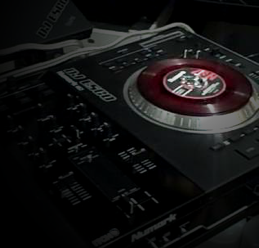
Stagecraft Software - Scratch Track - Timecoded Vinyl

Scratch track is the cheapest, simplest, most versatile way to use your timecoded vinyl in any DAW or audio plugin host. That makes this plugin the easiest way to add scratching to your recording projects, period.

Midi Scratching

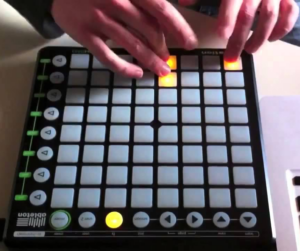
Stagecraft Software - Scratch Track - Midi Scratching
Scratch track is the cheapest, simplest, most versatile way to use your timecoded vinyl in any DAW or audio plugin host. That makes this plugin the easiest way to add scratching to your recording projects, period.

Live Input

Stagecraft Software - Scratch Track - Live Input
You can even scratch a stream of live incoming audio. This means you can scratch any of the sounds that you can generate with the host program, or even incoming audio like a live MC. Imagine sending out a shout out from on stage, and then rolling it back to scratch the audio. No problem.

Samples and Tracks

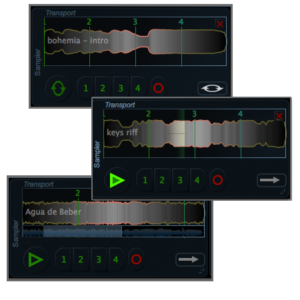
Stagecraft Software - Scratch Track - Samples and Tracks
You can use this plugin to trigger samples and tracks. There are programmable cue points so you can juggle between cues in your samples at the touch of a button.

Midi Learn

Stagecraft Software - Scratch Track - Midi Learn

Like all our plugins, this one comes with it’s own midi learn. Simply right click on any of the buttons or sliders (including the crossfade) to map a midi signal to that control.

Crossfade

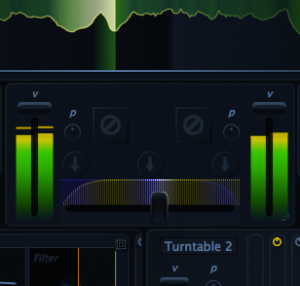
Stagecraft Software - Scratch Track - Crossfade

The only plugin out there with a professional level crossfade. This plugin lets you adjust the curve of the crossfader, and responds with super low latency to incoming midi signals, so you can finally use a midi controller for serious scratching.

Additional Information

Mac

  • OS X 10.7 or newer

Formats:

  • AAX
  • AU
  • VST
  • VST3
  • Standalone

Windows

  • Windows 7 or newer

Formats:

  • AAX
  • VST

On Mac, the installer will add the plugin to the system folder for VST plugins (/Library/Audio/Plug-Ins/VST) and will install the AudioUnit to the AU directory (/Library/Audio/Plug-Ins/Components). The standard directories are scanned by most DAWs as they start up, so the plugin should appear immediately in your host software. It is capable of running in 32 or 64 bit hosts.

On Windows, the installer is a zip file. When unzipped, you will find several versions of the VST plugin (64 bit). Copy the plugin to the location of your choice. You then need to make sure that your 64 bit host software is scanning that location for the plugin to show up.

Categories:

Amp Simulators

Formats:

Plugin

Tags:

Plugin scratch

Discover More

View All Events

BROWSE ALL

Happening Now

View Heatwave Sale 2026

SHOP LIVE EVENT
Your Playlist CLEAR
Your playlist is currently empty. Visit a product page and add some tracks to your playlist
Audio Player

0:00
0:00